Tower Cab Mode
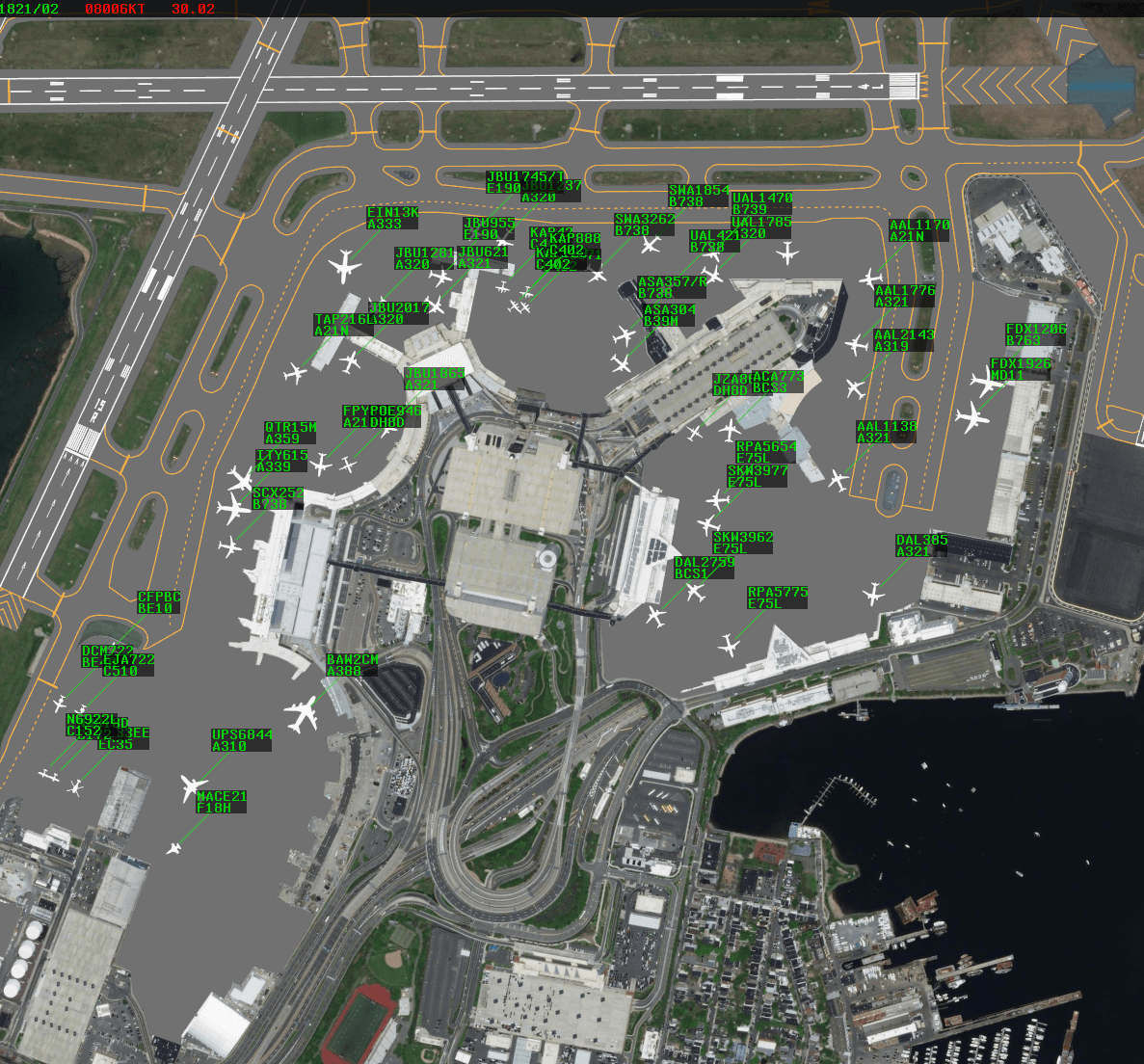
Tower Cab mode is a new system unique to CRC that simulates the workflow of visually controlling aircraft from inside an air traffic control tower (ATCT). It is intended for use at facilities that lack ASDE-X ground radar and/or STARS terminal radar.
Contents
Background Imagery
By default, Tower Cab displays utilize background satellite imagery to depict an airport's nearby surroundings. This imagery can be dimmed or completely disabled in the display settings, in which case the chosen solid background color is displayed.
An airport diagram is drawn over the background imagery. The diagram can also be disabled in the display settings.
The display is panned by holding down the right mouse button and dragging the display to the desired position. The display is zoomed in or out using the mouse scroll wheel. By default, the display zooms in and out from the center of the display, but can be zoomed in or out from the cursor's location by holding Alt while scrolling. The display is rotated by holding Shift and scrolling.
Ctrl+Home resets the display to the default position.
Aircraft and Data Blocks
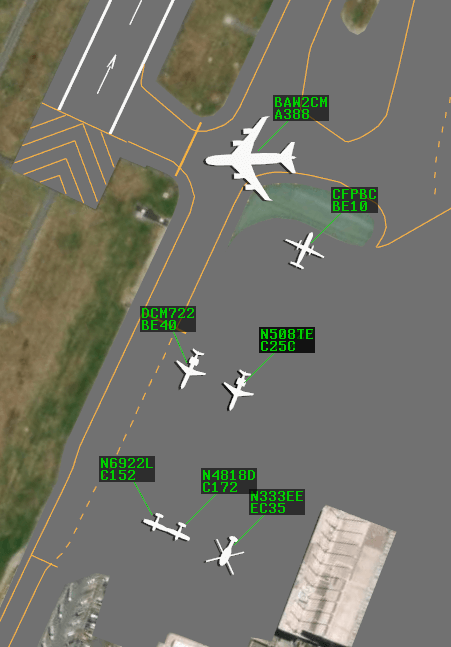
Aircraft are depicted on Tower Cab displays as icons that approximate their respective aircraft types. The color of the aircraft icons can be customized in the display settings.
Attached to each aircraft icon via a leader line is a Data Block. Data Blocks are repositioned by simply left-clicking and dragging to a desired position. An aircraft's Data Block can be toggled by left-clicking the aircraft's icon.
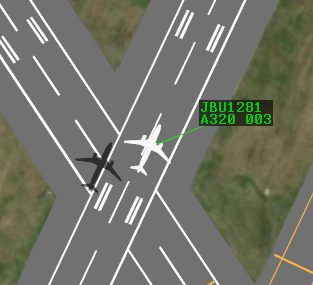
The first line of a Data Block can contain the aircraft's callsign, airline identification (such as DAL for Delta), or no indication of the aircraft's ID, depending on the setting selected in the display settings. If enabled in the display settings, the aircraft type is displayed on the second line. Finally, if enabled, an airborne aircraft's altitude in hundreds of feet MSL is displayed after the aircraft type (Figure 3).
Note that an aircraft's icon and the aircraft type displayed in its Data Block are derived from the aircraft type specified by the pilot upon connection to the VATSIM network, not the aircraft type in a corresponding flight plan.
The Data Block font size and color can be customized in the display settings.
Weather Depiction
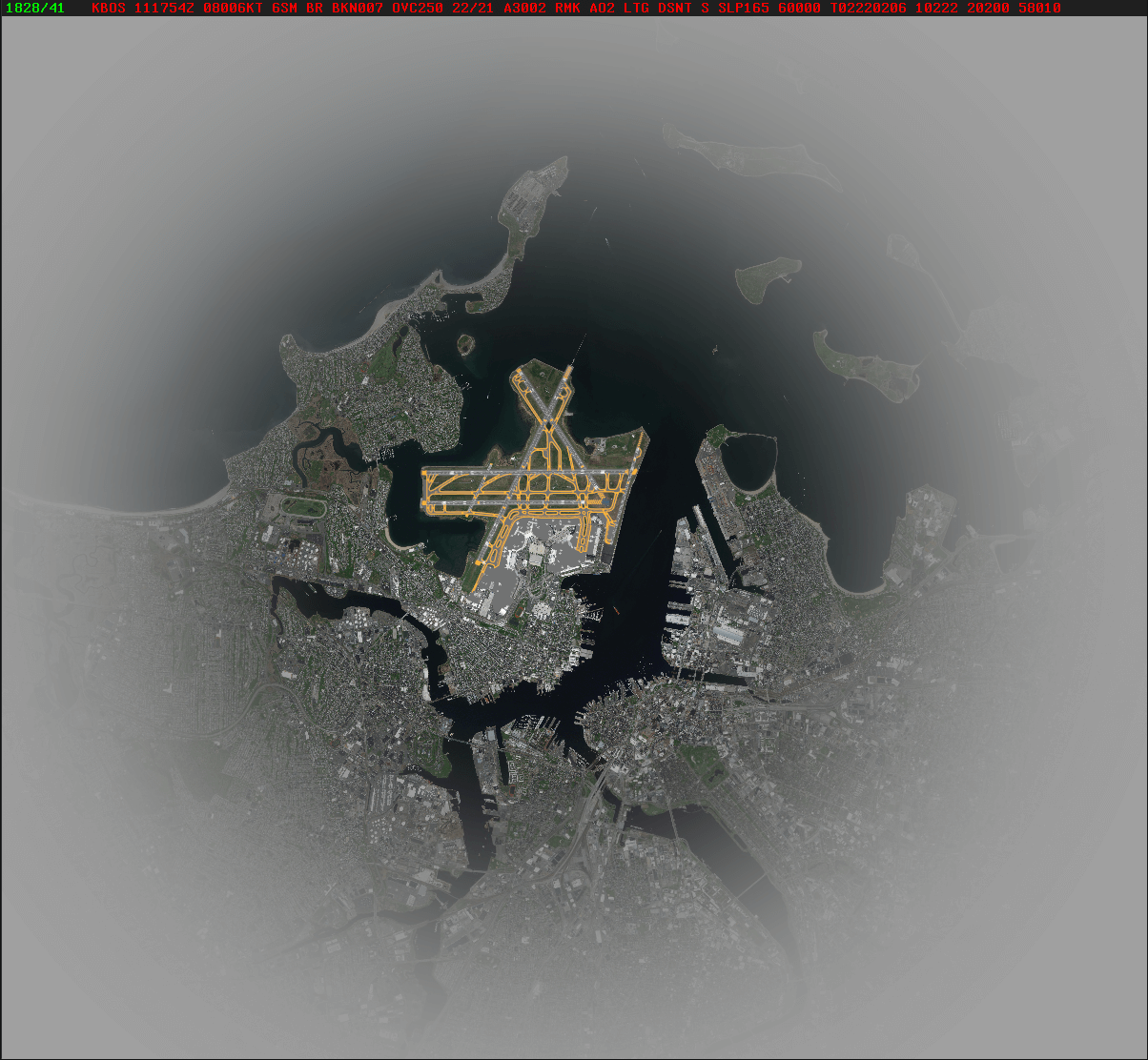
Tower Cab display visibility is limited by a ring of clouds. These clouds default to a radius of 10-15 SM from the airport's ATCT on clear weather days but slowly decrease to the appropriate visibility range on days with limited visibility.
Aircraft above the reported ceiling are not displayed.
When connected on a Sweatbox environment, the .unlimitedvis Dot command may be entered in the Command Line to toggle reduced visibility.
Status Text
Tower Cab displays include Status Text that can be displayed either at the top or the bottom of the display, or hidden completely, based on the option selected in the display settings. From left to right, the Status Text contains the following information:
-
Connection Status: displays "DISCONNECTED" if disconnected from the VATSIM network, or "INACTIVE" if the session hasn't been activated
-
Time: the current Zulu time in HHMM/SS format
-
Weather: the latest available weather report (METAR) for the airport's station. Weather text is green when the station is VFR, blue when MVFR, red when IFR, and pink when LIFR.
By default, the station's reported wind and altimeter settings are displayed. Left-clicking the weather text toggles display of the full reported METAR.
The weather text blinks between bright and dim when a new weather report is available. Left-clicking the weather text acknowledges the new report and stops the text from blinking.
Command Line
The only form of text input in Tower Cab mode is through the Command Line. The Command Line appears when text is entered. It is positioned above or below the Status Text depending on the Status Text's positioning on the display. In addition to Dot commands, the following commands are supported by the Command Line:
| Command | Description |
|---|---|
<1-9> |
Orients all Data Blocks to the specified position as per Table 2 |
<1-9> <aircraft ID> |
Orients the specified aircraft's Data Block to the specified position as per Table 2 |
/<0-5> |
Sets the length of all Data Block leader lines |
/<1-5> <aircraft ID> |
Sets the specified aircraft's Data Block leader line length |
<1-9>/<1-5> |
Sets all Data Block leader line directions and lengths |
<1-9>/<1-5> <aircraft ID> |
Sets the specified aircraft's Data Block leader line direction and length |
FP <aircraft ID> |
Opens the Flight Plan Editor to the specified aircraft's flight plan |
VT [V\|R\|T] <aircraft ID> |
Assigns the specified voice type to the specified aircraft |
Pressing Enter executes the command. Left-clicking an aircraft enters the aircraft's ID into the Command Line and immediately executes the command. Pressing Esc clears the Command Line.
| Input | Data Block Position |
|---|---|
| 1 | SW |
| 2 | S |
| 3 | SE |
| 4 | W |
| 5 | Default |
| 6 | E |
| 7 | NW |
| 8 | N |
| 9 | NE |
F6 and Ctrl+F6 inputs FP into the Command Line.
F9 and Ctrl+F9 inputs VT into the Command Line.
Settings
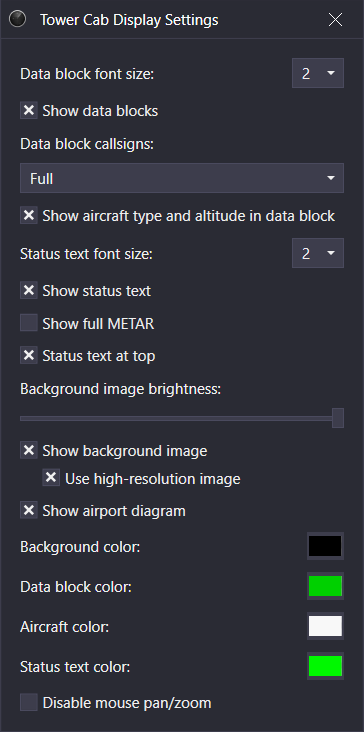
The Tower Cab Display Settings window is accessed through the Controlling Window's menu (hamburger icon on the left of the top toolbar) by selecting the Display Settings option. The Tower Cab display settings contain the following options:
- Data Block font size: the Data Block font size
- Show Data Blocks: displays Data Blocks
- Show aircraft type and altitude in data block: displays aircraft type and altitude (if airborne) in Data Blocks
- Status text font size: the Status Text font size
- Show status text: displays the Status Text
- Show full METAR: displays the full reported METAR in the Status Text. When disabled, only the reported wind and altimeter setting are displayed.
- Status text at top: displays the Status Text at the top of the display. When disabled, the Status Text is displayed at the bottom of the display.
- Background image brightness: controls the brightness of the background satellite imagery
- Show background image: displays the background satellite imagery
- Use high-resolution image: displays higher resolution satellite imagery in the area immediately surrounding the airport
- Background color: the background color displayed when the background satellite imagery is disabled
- Data block color: the Data Block text color
- Aircraft color: the aircraft icons color
- Status text color: the Status Text and Command Line's color
- Disable mouse pan/zoom: disables panning and zooming with the mouse
Ctrl+D opens the Display Settings window.